Maybank
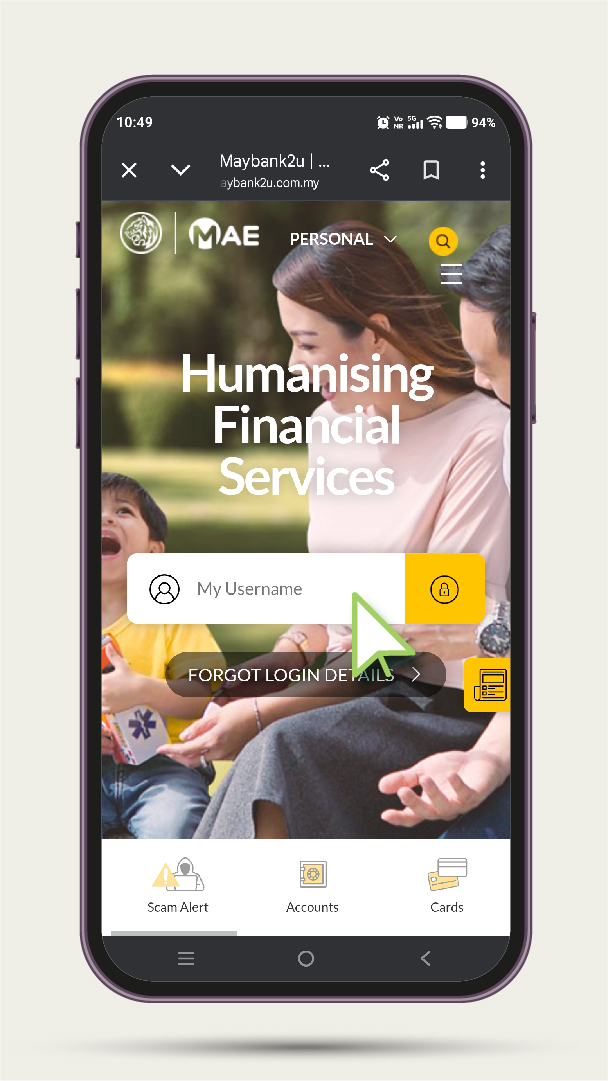
If you are a Maybank user, you can easily download your bank statement online via Maybank2U.
- Log in to your Maybank2U account
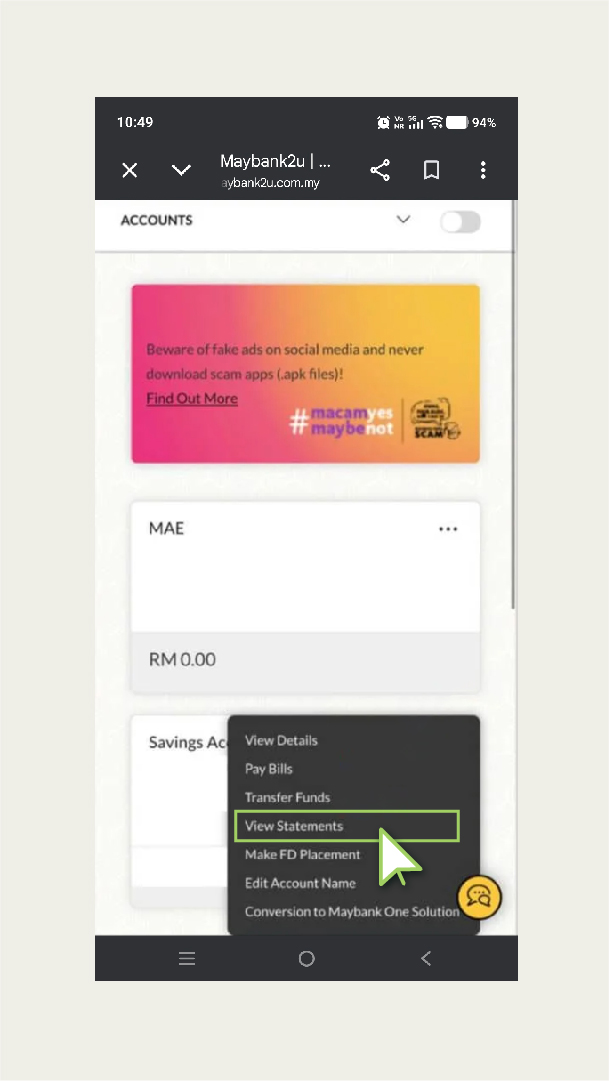
- Select “View Statements”
- Your bank statement will be displayed
- Adjust the statement date to the desired month
- Click “Statement” and download the file
Maybank also offers a free eStatement service, allowing you to receive your monthly statements directly via email.


CIMB Bank
If you are a CIMB Bank user and wish to obtain your CIMB bank statements online, you should use CIMB Clicks.- Log in to CIMB Clicks
- Press “My Accounts”
- Select “Deposits/ Investment Account-i”
- Click the three-dot button & choose “View/ Download eStatements”
- Choose the desired month and click the download button


Hong Leong Bank
Users of Hong Leong Bank can use the Hong Leong Connect apps to download statements for free.- Log in to the Hong Leong Connect apps
- Choose the “Statement/Invoice” menu
- Press “Online Statement”
- Select the statement in the pop-up
- Choose the desired month and download the statement


RHB Bank
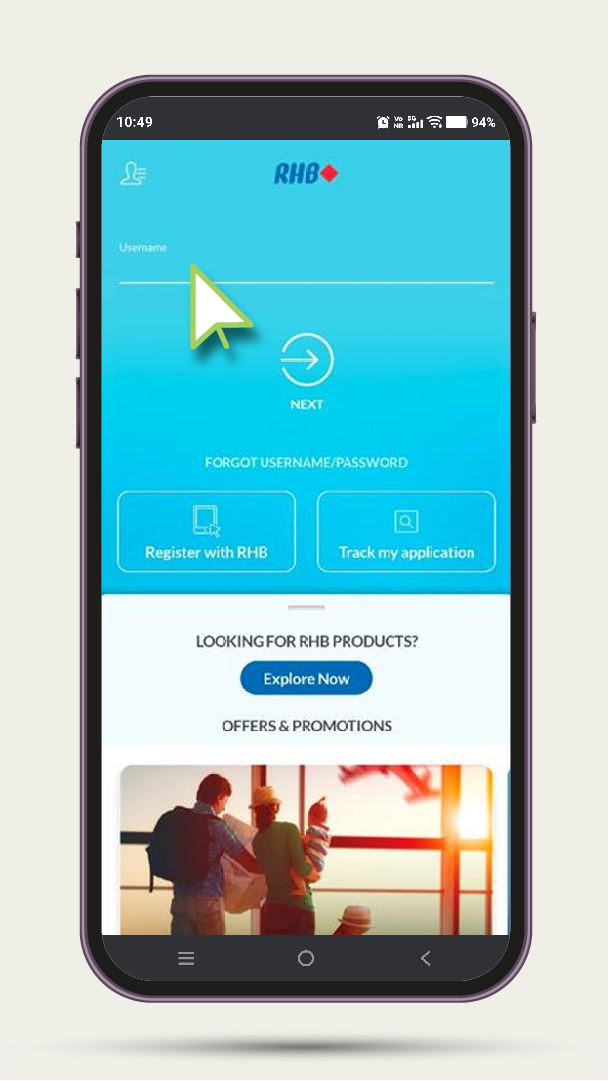
If you are an RHB bank user, you can obtain your RHB bank statements using RHB Now.- Log in to RHB Now
- Click on your account column
- Click “Statement”
- Select the desired month
- “Save to file” to download the bank statement


Bank Islam
For Bank Islam users, you should use Bank Islam Biz to obtain bank statements for free.- Log in to Bank Islam Biz
- Press the three-line button
- Go to “my accounts”
- Press “e-statement”
- Choose “download”
- Select the desired account and press “submit”
- You will see a list of statements
- Press the statement you want


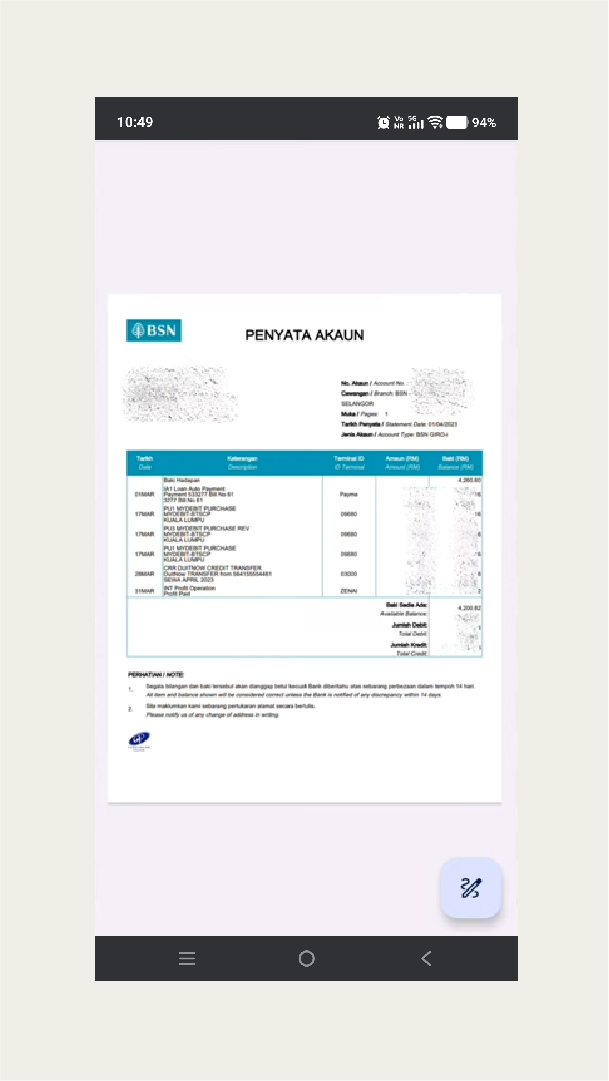
BSN
If you are a BSN user, you can get your bank statement via BSN website- Visit the MyBSN website
- Enter your Username
- Click the Login button
- Confirm your Security Image
- Enter your Password
- Click on Account Overview
- Click on E-Statement
- Click on Account Name
- Click on Transaction History
- Click Print